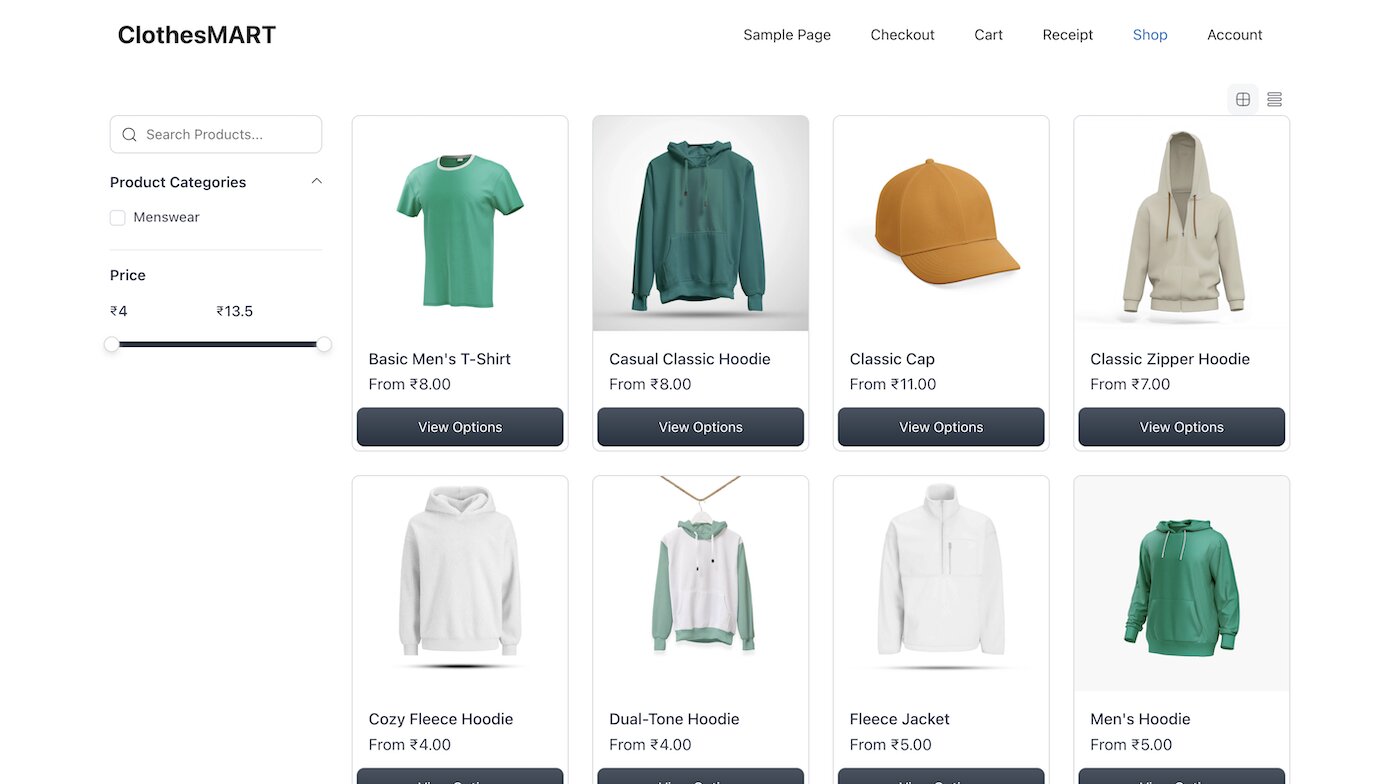
Hey friend, if your Shopify store feels even a tiny bit slow, you’re quietly losing sales. The truth is, research shows a single extra second of load time can drop your conversions by up to 7%.
Stores that load in about 1 second convert 2.5–3 times better than ones taking 5 seconds. Bounce rates can triple if it takes longer than 3 seconds. Oof.
But here’s the best part — you can fix this without hiring expensive devs or rebuilding everything. I’ll walk you through the exact steps that actually work (based on Shopify’s own best practices and what I’ve seen help real stores).
We’ll focus on quick, doable wins that make a huge difference. Let’s get your store flying!
1. Start with a Lightweight Theme Like Dawn

This is your biggest single upgrade — seriously.
Shopify built Dawn (their free default theme) with speed in mind. It’s clean, modern, and hits strong Lighthouse scores right away (Shopify actually requires all Theme Store themes to average at least 60 across key pages).
Heavy themes with tons of built-in features? They look fancy but add extra code that slows everything down. Switch to Dawn (or another Online Store 2.0 lightweight theme) and customize only what you need. You’ll often see load times drop by seconds instantly.
Pro Tip: Install it, copy over your branding, and test. Most stores feel the difference the same day.
2. Remove Unnecessary Apps (This One Hurts the Most)
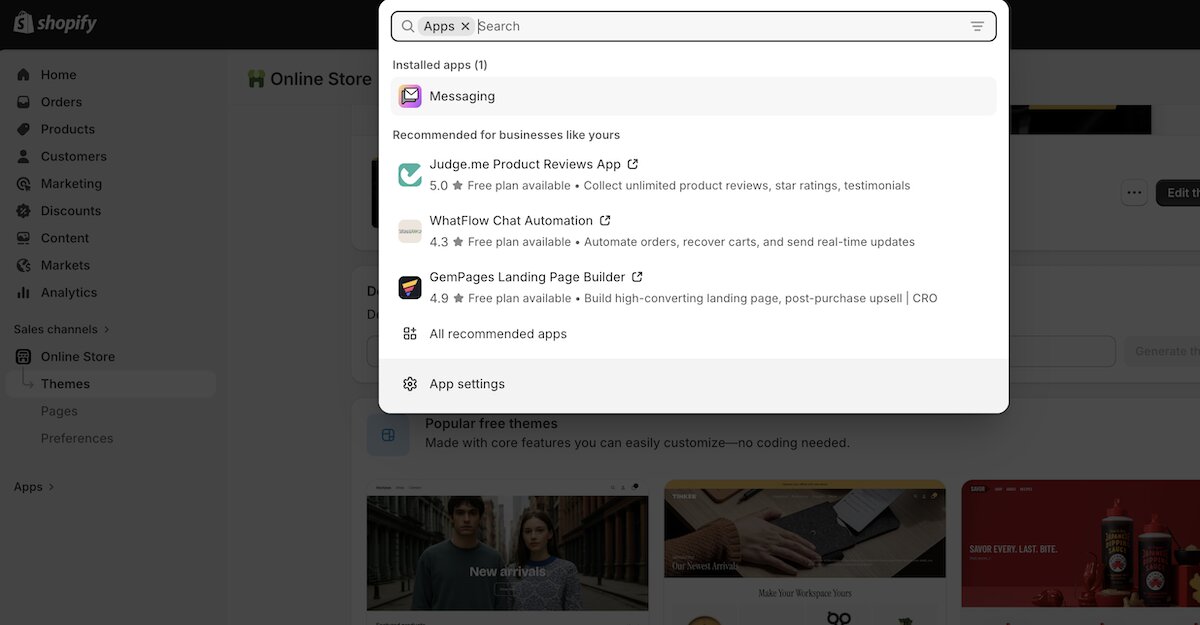
Every app you install adds JavaScript and extra requests — and they add up fast.
If you’re running 10–20+ apps, your speed is probably suffering. Go through your installed apps right now:
Keep only the must-haves.
Uninstall the rest or replace with Shopify’s built-in tools (like native reviews or collections).
You’ll be shocked how much faster things feel. Shopify’s own advice? Minimize third-party apps to keep things lean.
3. Optimize Your Images (The #1 Speed Killer)
Big, unoptimized images are stealing your speed — but fixing them is easy and free.
Here’s exactly what to do:
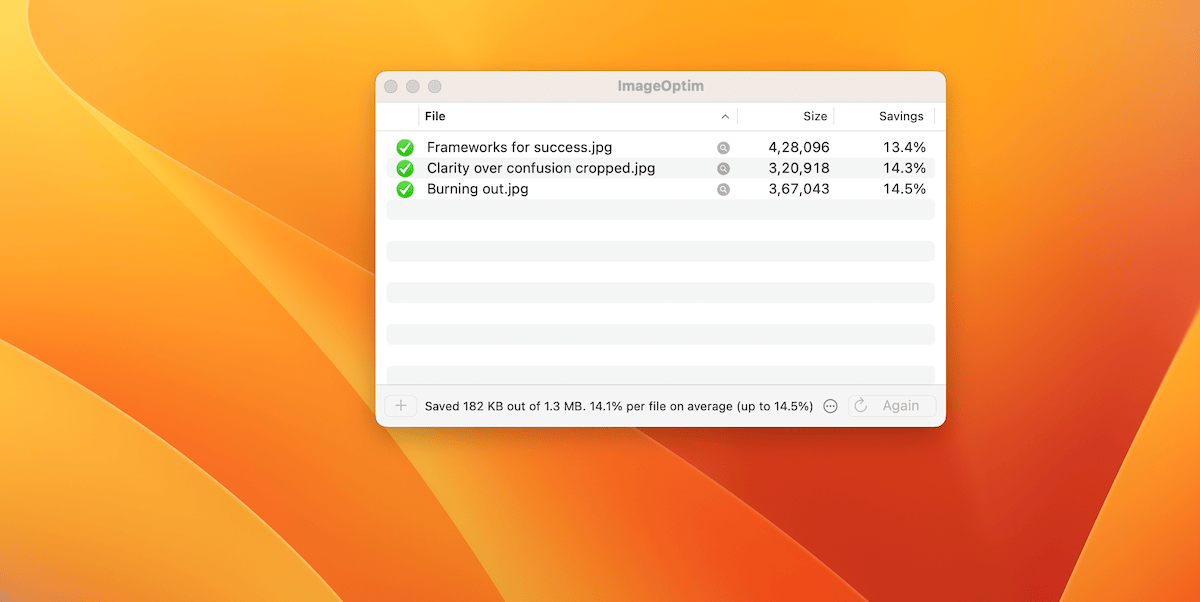
Always compress first using Squoosh (Google’s free tool), ImageOptim, or a simple PNG-to-JPG converter. Save as WebP or JPEG — way smaller files with almost no quality loss.
Use Shopify’s smart image tags in your code like {{ image | image_url: width: 800 }}. This pulls the perfect size from Shopify’s built-in CDN automatically.
Keep sizes reasonable: Hero banners max ~1920px wide, product photos 800–1200px.
I have seen people adding product images directly from their DSLR, which is a very big problem, because without resizing the image it will be heavy for web.
And generally for web, we don’t need huge image images.
Do this for every image and you’ll cut page weight dramatically. Shopify’s CDN does the rest for free.
4. Clean Up Your theme.liquid File
This is the “brain” of your theme — and it often has leftover junk.
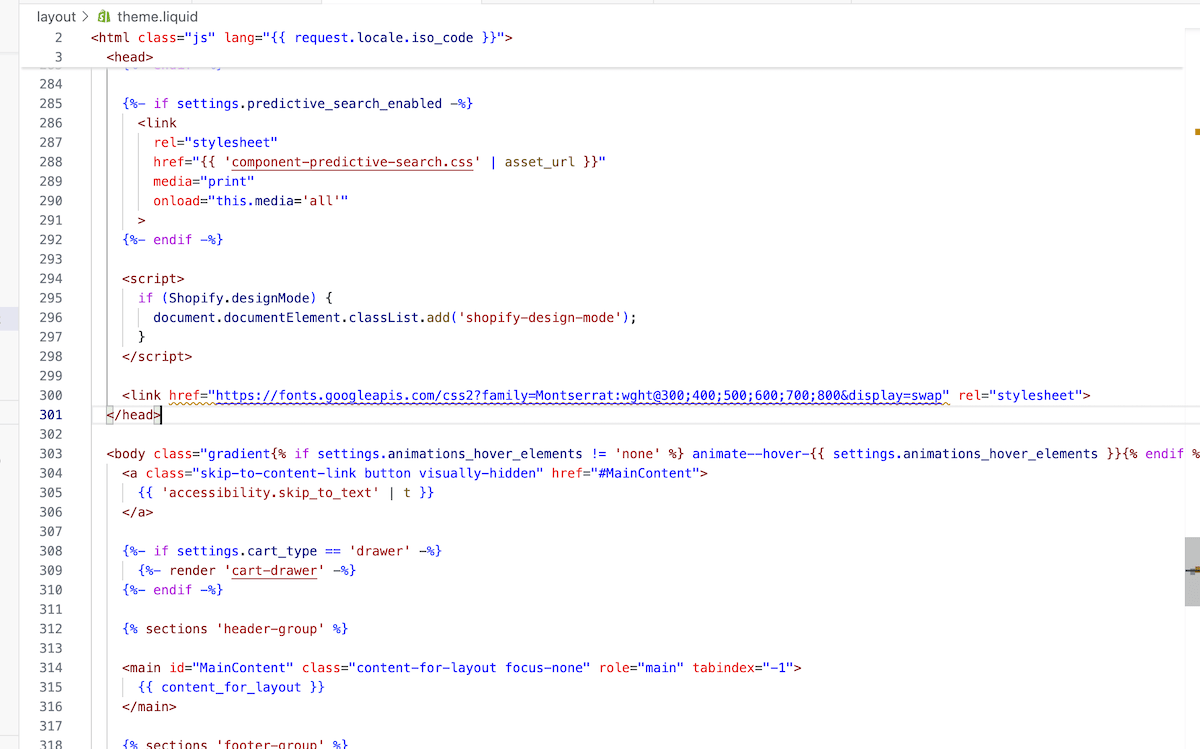
Open theme.liquid in the code editor:
- Remove unused sections, old scripts, or extra Liquid loops.
- Add preload for your most important assets (like main CSS or hero image) — but only 1–2 max.
- Use defer or async on any non-critical JavaScript.
If code isn’t your thing, just search for “Theme Check” in the Shopify app store — it flags issues automatically. A quick cleanup here can shave off serious load time.
5. Stick to 1–2 Fonts Max
Every extra font means another file download — and that slows your store.
Use system fonts (like the built-in ones Shopify recommends) wherever possible — zero extra downloads.
Limit custom fonts to one at most, and load it smartly.
Your site will feel snappier and look cleaner too.
6. Switch to SVG Icons + Make Your Logo an SVG
PNG icons and big logo files? They’re heavier than they need to be.
Convert all icons to SVG (use free tools like SVGOMG). They’re tiny, scale perfectly on any device, and load instantly.
Turn your logo into SVG too, and size it properly (under 100KB is ideal — not 1MB+). This one change alone makes your header load way faster and looks sharper everywhere.
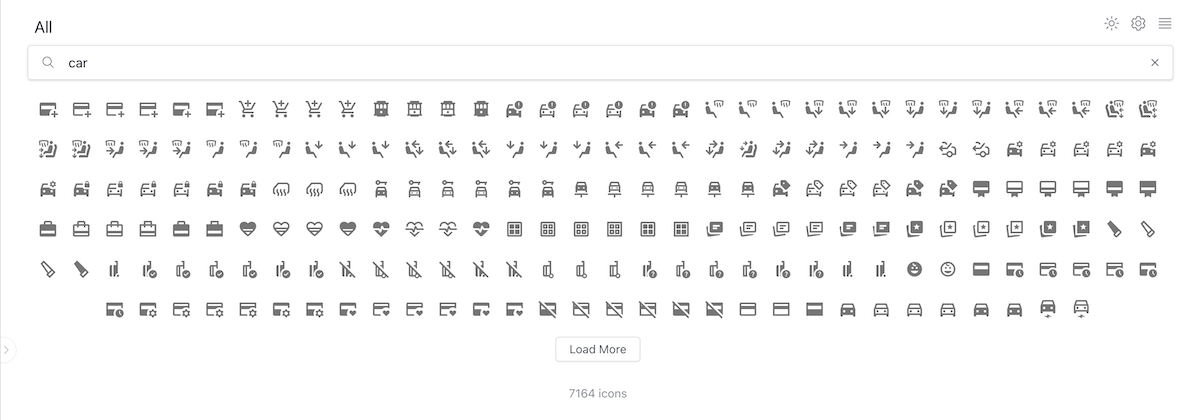
You can use popular free library like icones.js.org to get your SVGs and use throughout your website.
7. Turn On These Built-In Speed Boosters
A few more easy wins that Shopify makes simple:
Lazy loading: Dawn supports it natively. Just add loading=”lazy” to images and videos below the fold — they only load when someone scrolls to them.
Lite video embeds: For YouTube or product videos, use lightweight options (or Shopify’s player). Skip autoplay on mobile.
Limit sliders/pop-ups: One strong hero image beats a carousel. Load extras only when needed.
Shopify’s CDN + browser caching handles the heavy lifting automatically.
8. Test Your Speed and Track Wins
Don’t guess — measure it!
Run free tests with Google PageSpeed Insights or check your Shopify admin’s Web Performance report (it shows real-user data).
Target: Load time under 2–3 seconds, Largest Contentful Paint (LCP) under 2.5 seconds, and “Good” Core Web Vitals scores.
Run a test before you start, make one change at a time, and re-test. You’ll see exactly what moved the needle.
9. Consolidate Tracking Codes (Especially If You Run Ads)
If you’re running ads (Meta/Facebook Pixel, Google Ads, TikTok, etc.) plus tools like Google Analytics, Microsoft Clarity, or others — don’t add them separately.
Each one adds requests, can block rendering, and tanks speed (PageSpeed drops of 50+ points aren’t rare).
Best fix (2025–2026 standard):
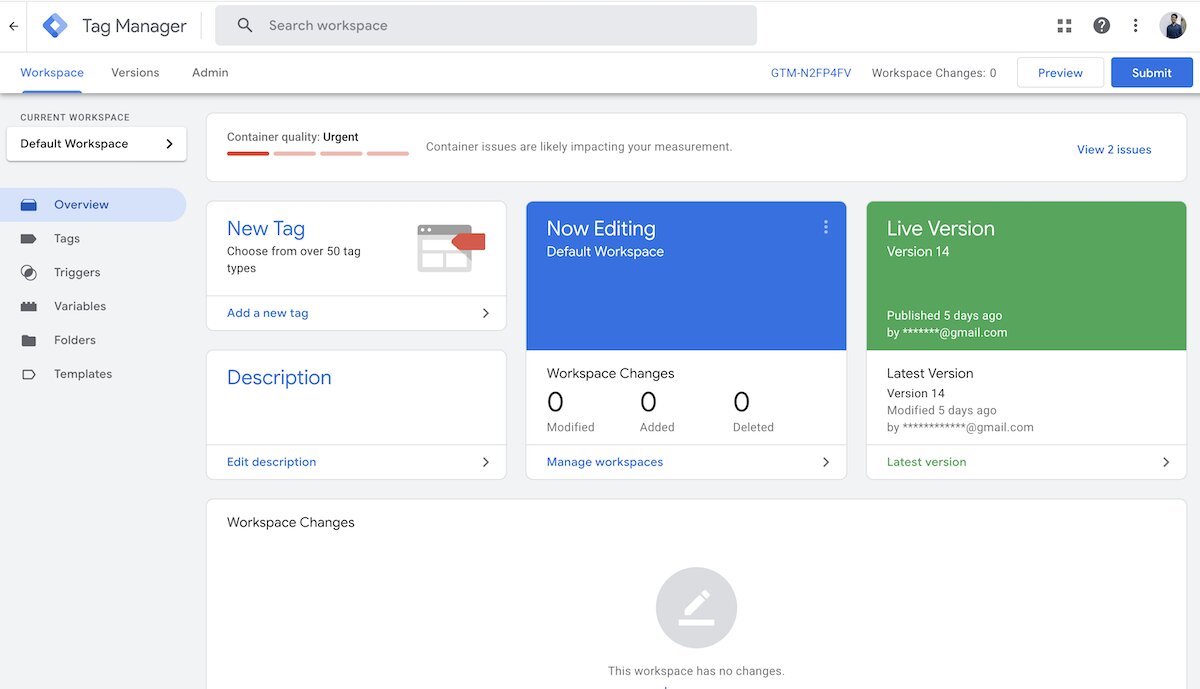
- Use Google Tag Manager (GTM) as a single Custom Pixel in Shopify (Settings > Customer events > Add custom pixel).
- Load one GTM container that handles ALL your tags: Meta Pixel, GA4, Clarity, Google Ads conversions, etc.
- Benefits: Fewer scripts loading, no duplicates/conflicts, easier management, often 20–50% better performance for tracking-heavy stores.
- Shopify officially guides this — it reduces page-load hits while keeping ad/retargeting data accurate.
Pro move: Remove any old hardcoded pixels from theme.liquid or apps to avoid doubles. Test with Shopify Pixel Helper. If ads are your main traffic source, this alone can be a game-changer.